Rain Editor
The Rain Editor is a user interface for creating and editing rainfall data used in FLO-2D simulations. This tool allows you to define uniform or spatial rainfall events, set rainfall durations and intensities, and import or export rainfall time series files.
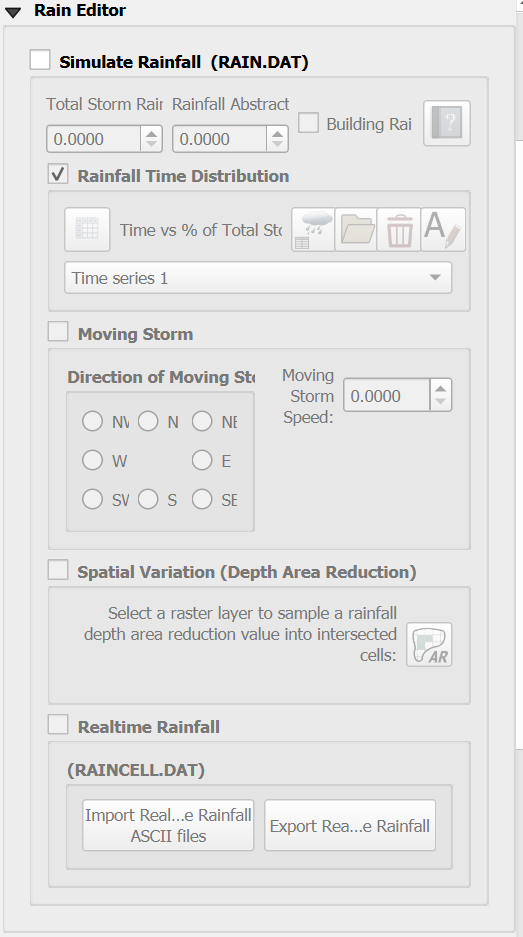
Uniform Rainfall
Uniform rainfall requires specifying the total storm rainfall in inches or millimeters, along with a rainfall distribution. In this example, the total rainfall is 3 inches. To determine the total storm rainfall, zoom to the rainfall raster with the Computational Domain layer visible, enable the Identify Features tool, and click within the domain to find the highest derived value. The Building Rain option is selected so that rainfall on fully blocked ARF cells will still generate runoff from those areas. The initial abstraction is set to the default of 0.00 inches. The rainfall distribution can be imported from a data file or manually defined using the Table tools.
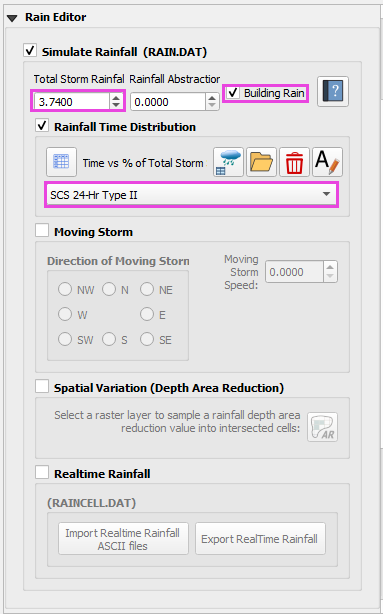
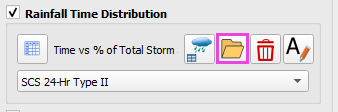
Select the rainfall distribution using the Folder menu.
Import the rainfall distribution file from a set of predefined files.
Note
The files are installed in the FLO-2D Documentation folder: C:\Users\Public\Documents\FLO-2D PRO Documentation\Rainfall Distributions
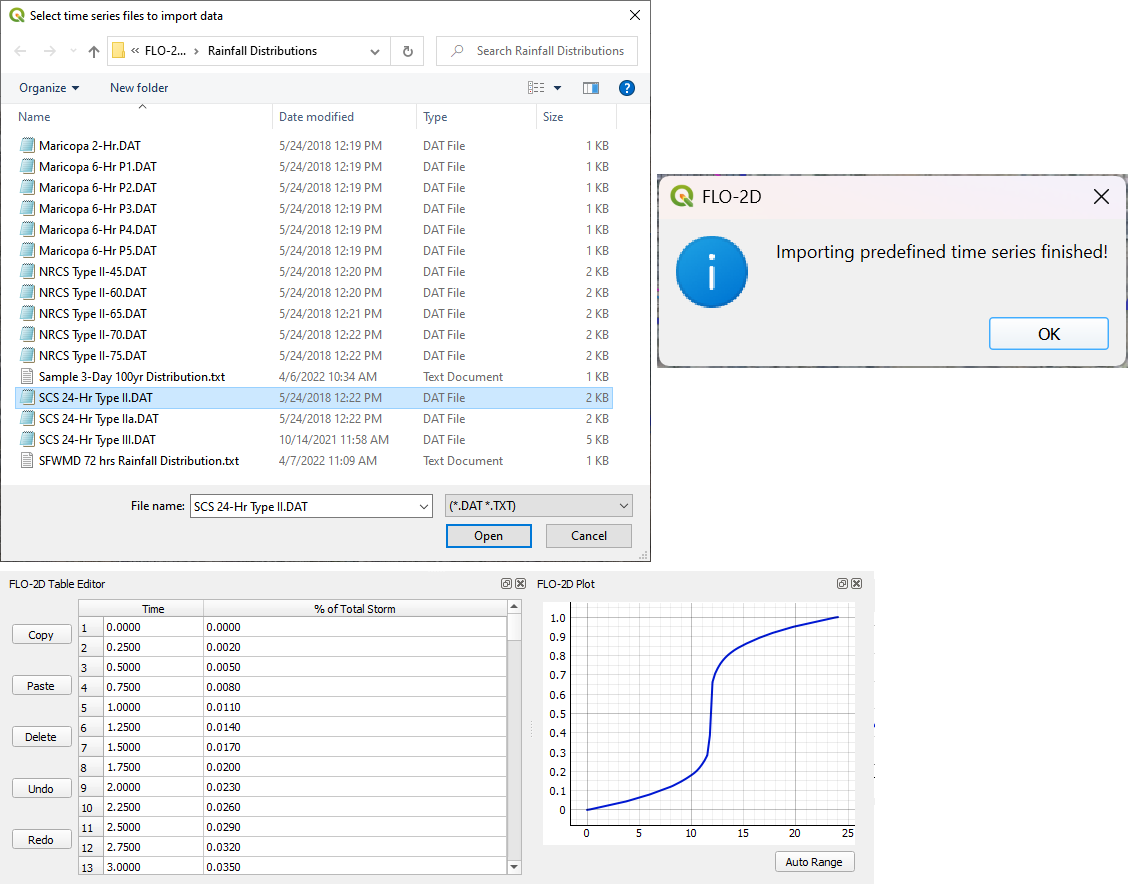
The rainfall data is imported into the FLO-2D Table Editor.
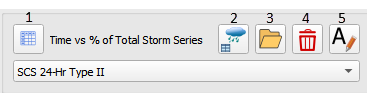
Load the currently selected time series into the editor table.
Add a new rainfall time series to the project.
Open a time series data file.
Delete a time series table.
Rename a time series data set.
Moving Storm
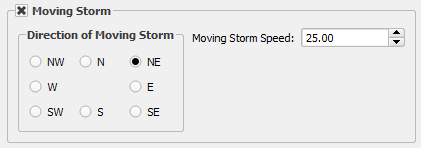
To simulate a moving storm cell, select a storm direction and speed. This data must be assigned along with isohyetal contours that represent storm intensity as depth are reductions contours.
Note
This moving storm method is not commonly used in FLO-2D simulations. It was replaced with the Real Time Spatially Variable Rainfall method, which allows for more flexibility and accuracy in modeling rainfall across a computational domain.
Spatially Variable Rainfall NOAA Atlas 14
Spatially variable rainfall can be modeled using depth reduction factors in the RAINFALL.DAT file. This file defines rainfall values in either inches or millimeters, where each value represents the depth at a specific point (typically the centroid of a grid element) relative to the total rainfall across the computational domain.
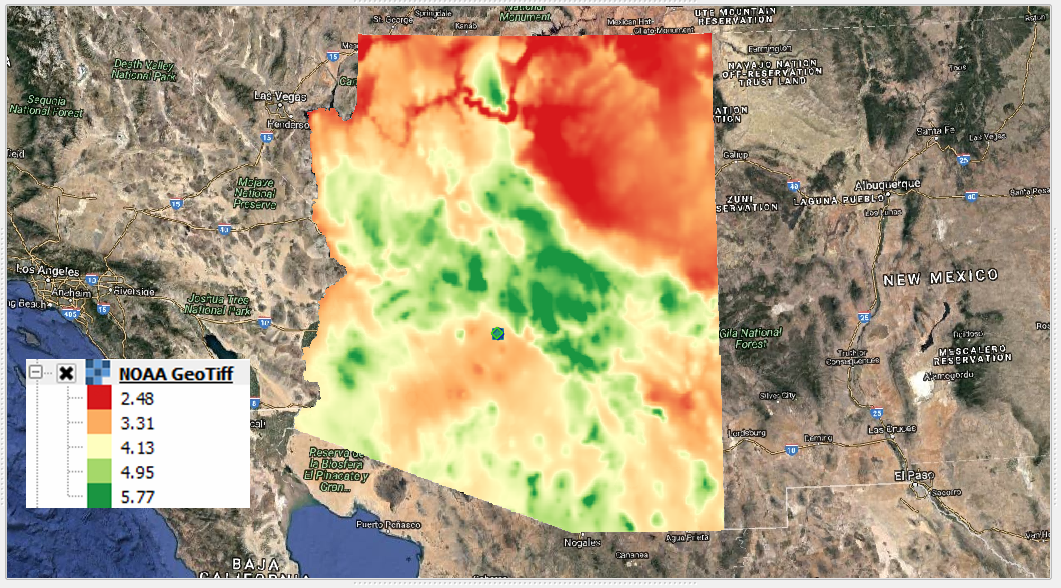
Rainfall input data are typically derived from precipitation rasters. In the United States, these rasters are generated from isohyetal contour maps provided by the NOAA Atlas series. Each raster corresponds to a specific precipitation frequency and duration (e.g., 6-hour, 100-year storm). The example below shows a 100-year, 6-hour precipitation map for Arizona, with the legend indicating total rainfall depth in inches.
NOAA Atlas 14 Precipitation Frequency Data Server
To perform the calculation, use the Depth Reduction calculator.


Click the Depth Reduction button.
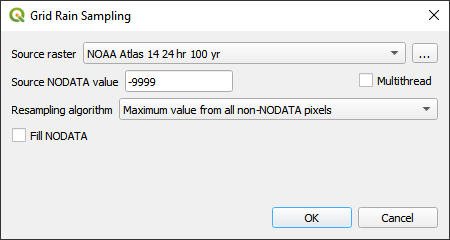
Fill the form and click OK.
The raster pixels are typically 1000 by 1000 ft or larger. It is not necessary to average the data.
Select the maximum value to set the cell value.
Realtime Rainfall NEXRAD
Real-time rainfall data can be generated from NEXRAD *.ASC grid files. In the United States, these files are produced using calibrated radar reflectivity data from the National Oceanic and Atmospheric Administration (NOAA), supplemented with rainfall gage measurements from local networks. Calibration is typically performed by regional agencies or consultants to improve accuracy.
NEXRAD rainfall datasets, along with gage data, are available for download through NOAA’s NEXRAD Archive. These datasets can be imported into the modeling environment using the Real-Time Rainfall Calculator, which interpolates the rainfall data to the computational grid and generates the necessary input files.
The calculator produces rainfall data in two formats:
RAINCELL.DAT (text format for FLO-2D)
RAINCELL.HDF5 (HDF5 format for large datasets or time series processing)
Tip
The RAINCELL.DAT file is a mega data file. It is not recommended to import this file into a QGIS – FLO-2D project when importing FLO-2D Data files. It is recommended to use a Skeleton Project with only grid data and no other components loaded to perform the RAINCELL.DAT or RAINCELL.HDF5 data files.
Rainfall Catalog
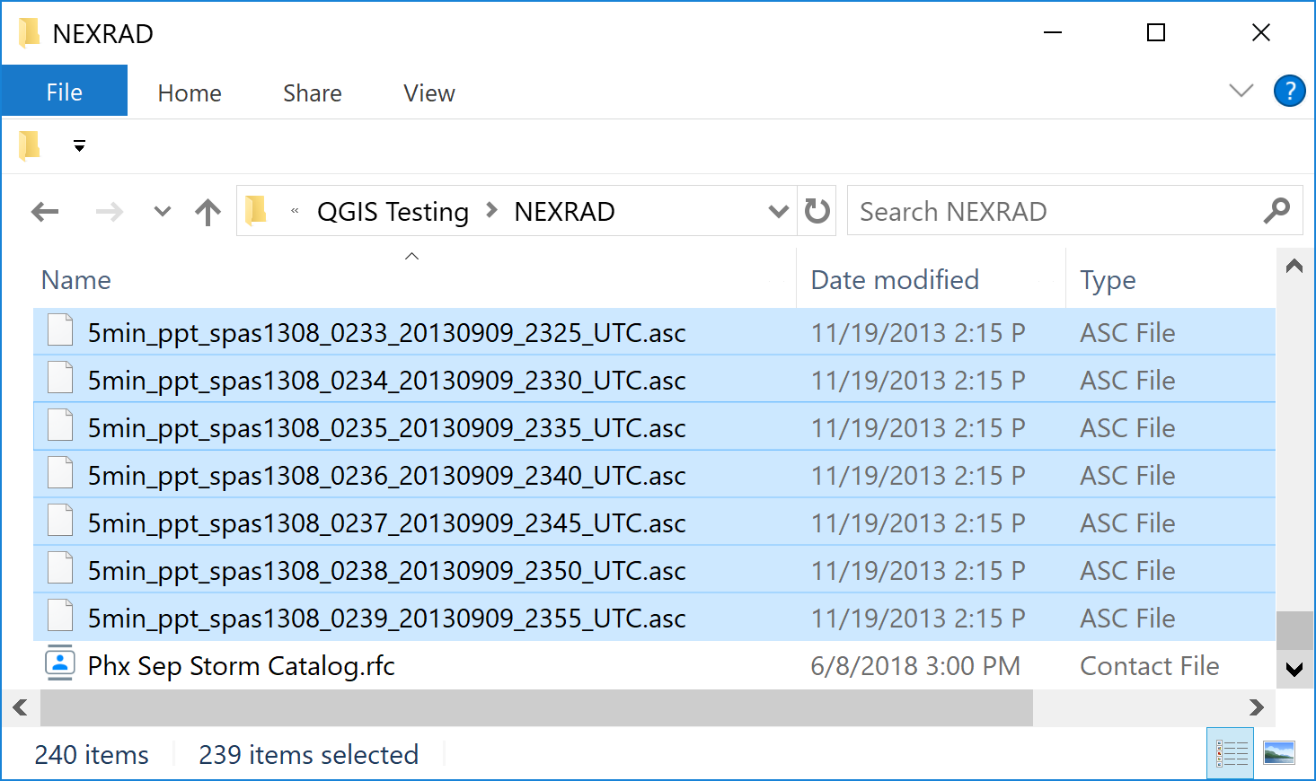
The project directory must contain all the rainfall *.asc files and a catalog file *.rtc. Both filetypes are text files. The *.asc files are rainfall coverage for the project area at a specified time interval. In this case the time interval is 5 minutes.
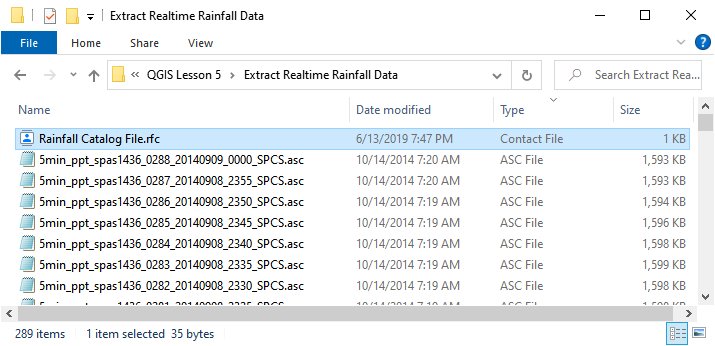
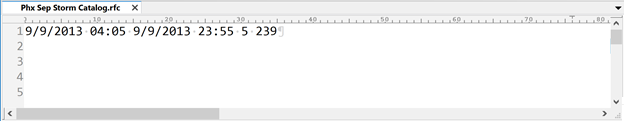
The rainfall catalog is a text file that contains specific information about the layout and timing of the data. The first line of data is a control line that sets up the timing of the storm and the interval.
Line 1: 9/9/2013 04:05 9/9/2013 23:55 5 239
Line 1: Start Time, End Time, Time Interval, *.asc File Count
Important
Line 2 of the *.rfc isn’t necessary. It was required for GDS processing. QGIS loads all files and does not require the list of files.
The Rainfall calculator will use all *.ASC files in the project directory. Make sure they are named in ascending order by time.
Time = 0 is not necessary. The FLO-2D engine (FLOPRO.EXE) will start the simulation at time and rainfall = zero. The rainfall data will interpolate from time = 0 rainfall = 0 to the first interval.
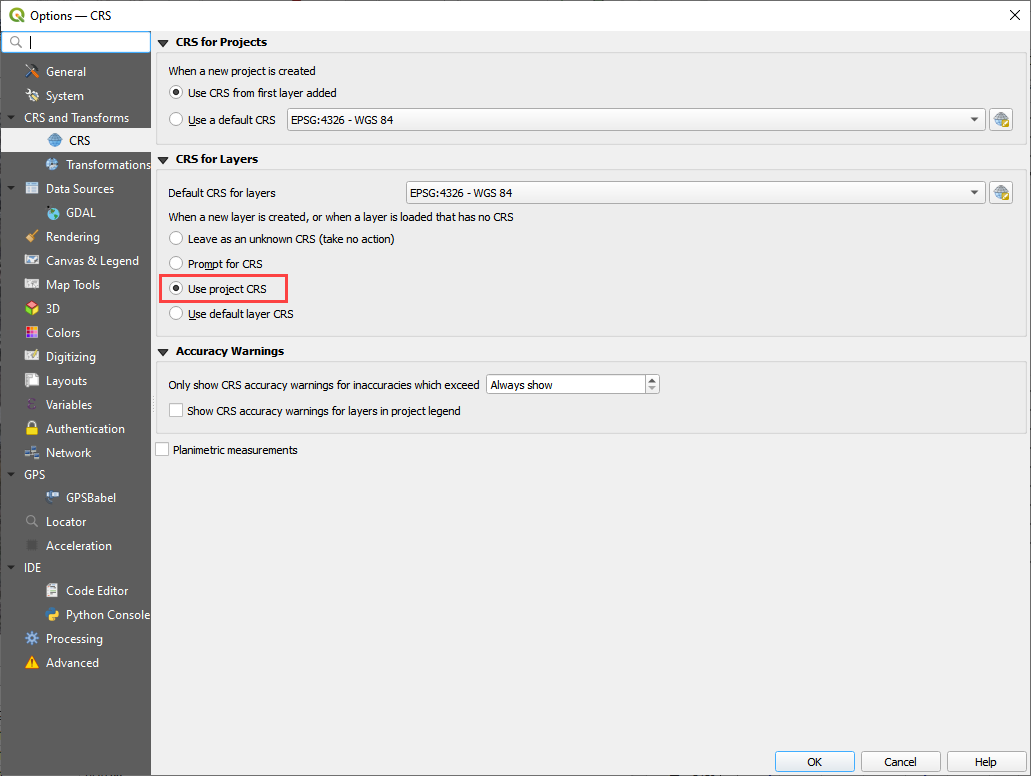
Setup Import Options
The rainfall data does not have a specific coordinate reference system (CRS).
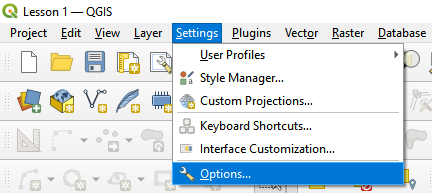
Set the import options for QGIS to automatically assign all imported data with no knows CRS to the Project CRS.
Click Settings Options
Select the following options and click OK.
Import Realtime Rainfall
To interpolate realtime rainfall data, activate the Realtime Rainfall Editor.
Click the Import Real Time Rainfall ASCII files.
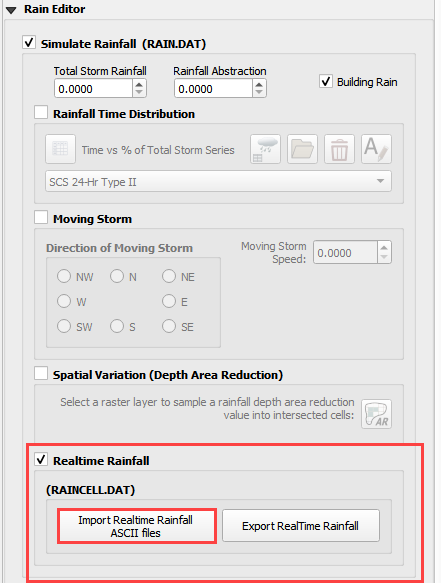
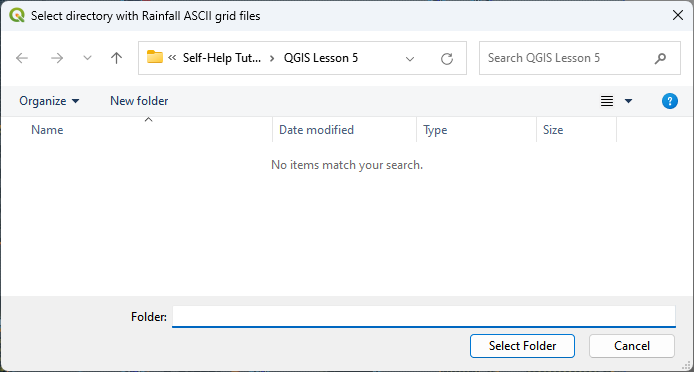
For the ASCII raster method, the Rainfall import tool is initiated by selecting a single *.asc file, but it will automatically load all *.asc files available in the directory.
Navigate to the correct directory and select the first file.
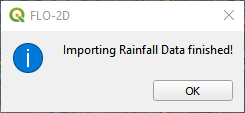
The progress bar will indicate that the process is running and since *.asc files do not have a know projection, QGIS is set to default to the Project Coordinate System. Once the process is complete a Blue QGIS message will appear and the Process Complete is written to the FLO-2D Log Message Panel.
Export the rainfall data
Important
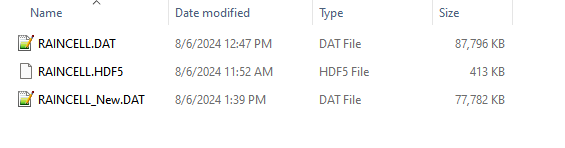
RAINCELL.DAT is an ASCII file, while RAINCELL.HDF5 is a compressed binary format.
For large projects, ASCII rainfall files can reach several gigabytes in size. Even the Self Help Kit produces a file approaching 1 GB.
HDF5 files are significantly smaller and generally provide faster load times.
*.DAT File Method (Older Method)
Click Export data (*.DAT) files button and Select the Output Location. The RAINCELL.DAT file will be exported with the project. The New RAINCELL data file truncates Zero Rainfall from the dataset. It will be smaller than the Old RAINCELL file.
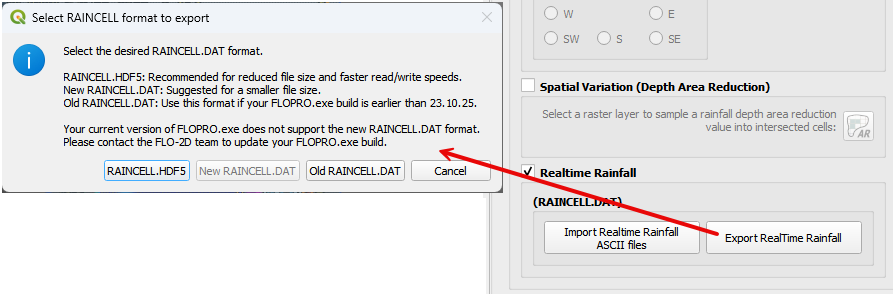
Wait for the data to export.
This dialog shows that the RAINFALL.DAT and RAINCELL.DAT files were exported.
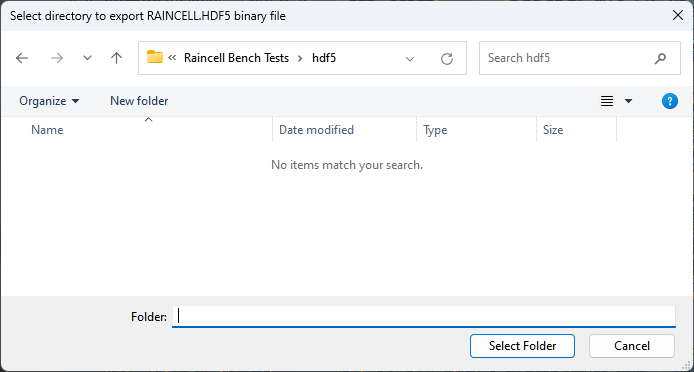
*.HDF5 File Method (Recommended for Realtime Rainfall)
Click Export data (*.HDF5) files button and Select the Output Location. The RAINCELL.DAT file will be exported with the project. The New RAINCELL data file truncates Zero Rainfall from the dataset. It will be smaller than the Old RAINCELL file.
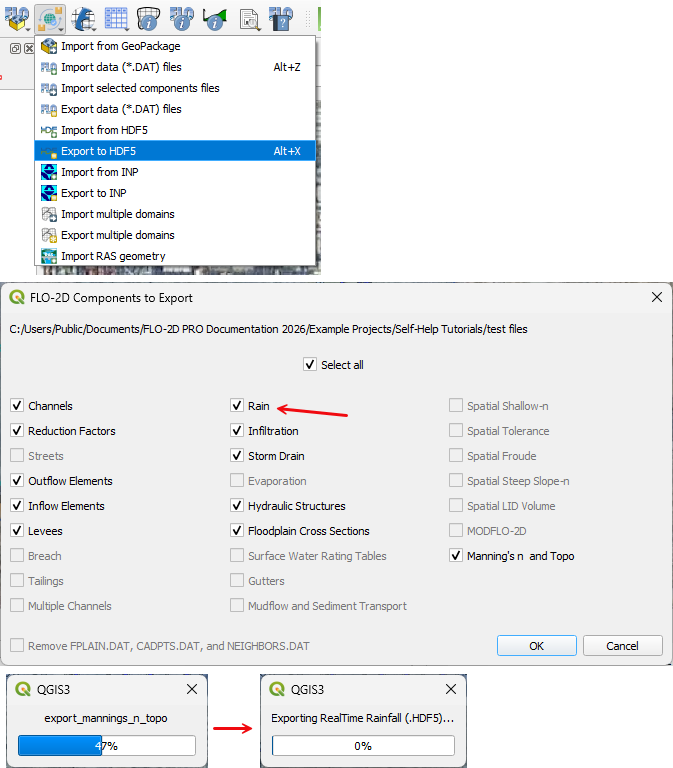
Wait for the data to export.
This dialog shows that the RAINFALL.DAT and RAINCELL.DAT files were exported.